![Screen Shot 2020-08-28 at 4.35.44 PM.png]](https://kb.mocingbird.com/hs-fs/hubfs/Screen%20Shot%202020-08-28%20at%204.35.44%20PM.png?height=40&name=Screen%20Shot%202020-08-28%20at%204.35.44%20PM.png)
The File Cabinet: A Guide to the New Features and Interface
In November 2025, the File Cabinet underwent a significant redesign with new features aimed at improving user experience. Here is a guide on how to navigate the updated File Cabinet and utilize its new functions.
File Cabinet Navigation
The new File Cabinet interface is designed with user-friendliness in mind. The folders are arranged on the left-hand side, making it easy to navigate through the folders. When you click on the File Cabinet, you will open into the "All Files" folder. This is the folder that houses all of the documents within your account. Simply click on any of the folders to view its specific contents. The interface also includes a search bar at the top, allowing you to search for specific files, and a filter button to the right of the search bar to narrow down your search.
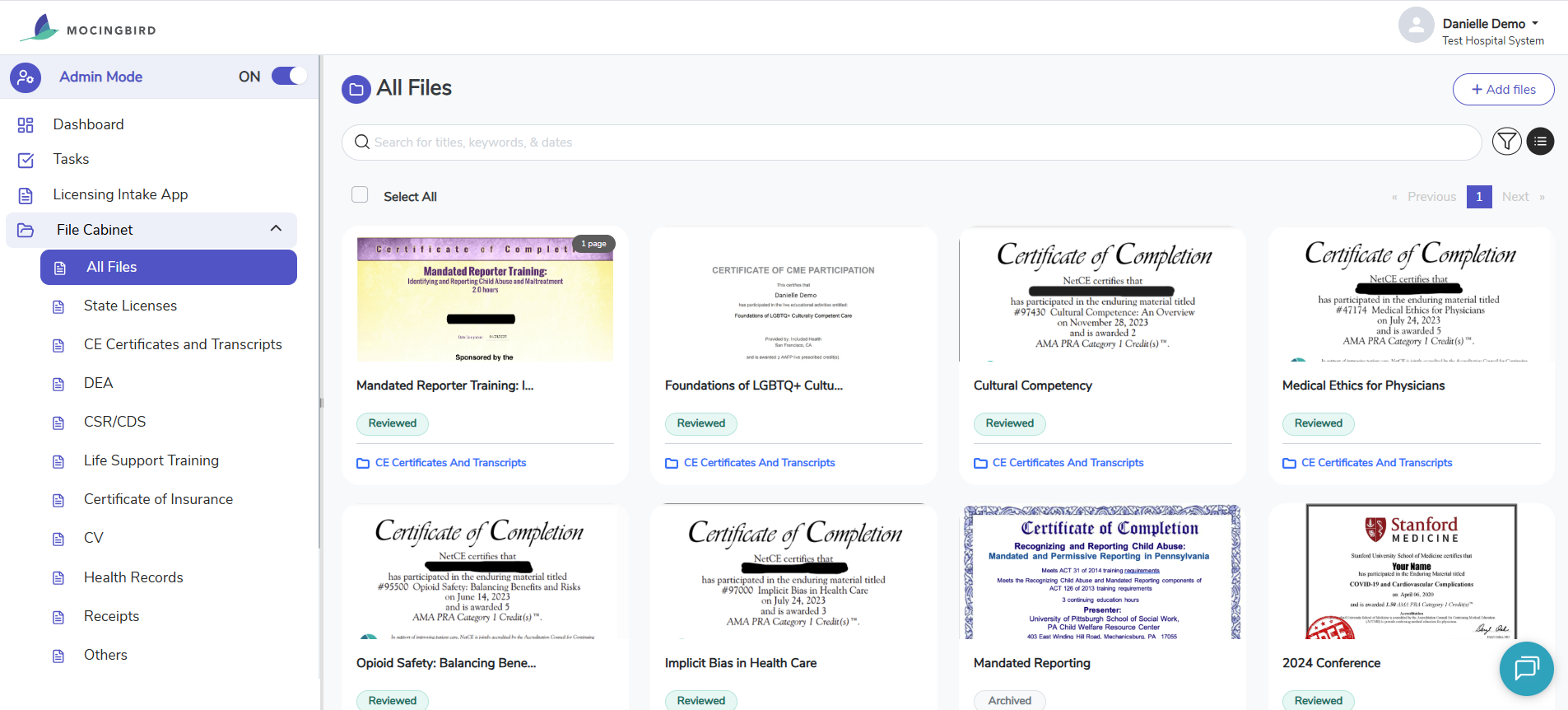
File Uploads
When uploading files, you can click on the "Add Files" button in the upper right hand corner of your File Cabinet. Here, you will be instructed to select if you are uploading CE, or a different type of document. Once you make your selection, you can drag and drop the files or you can click "Browse Files" to search for the files. Once all of your files are uploaded, you can click the close button at the bottom of the page.
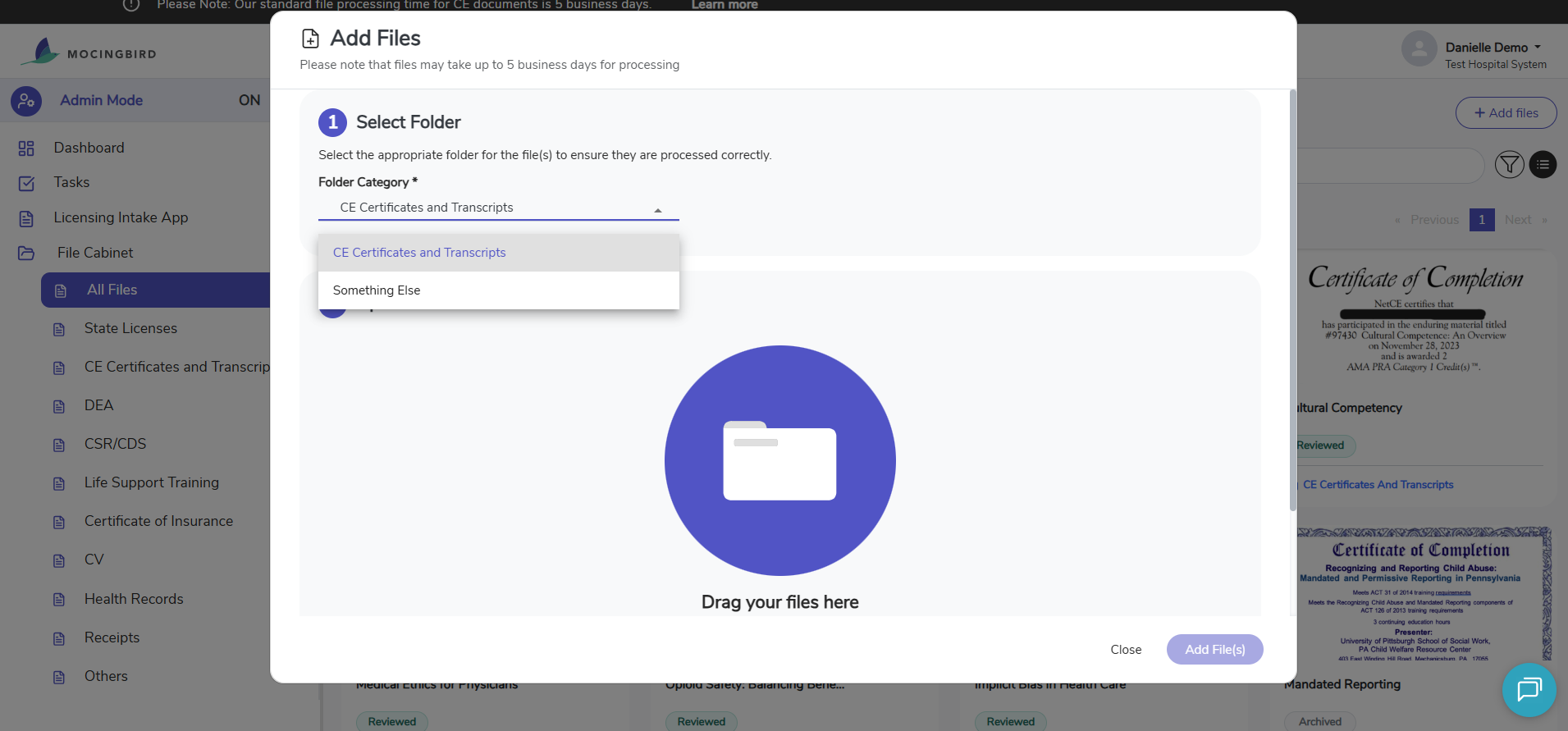
Be sure to follow these guidelines when uploading files. This will ensure you get the proper credit for the courses you have completed: What type of documents should I upload?
File Tags
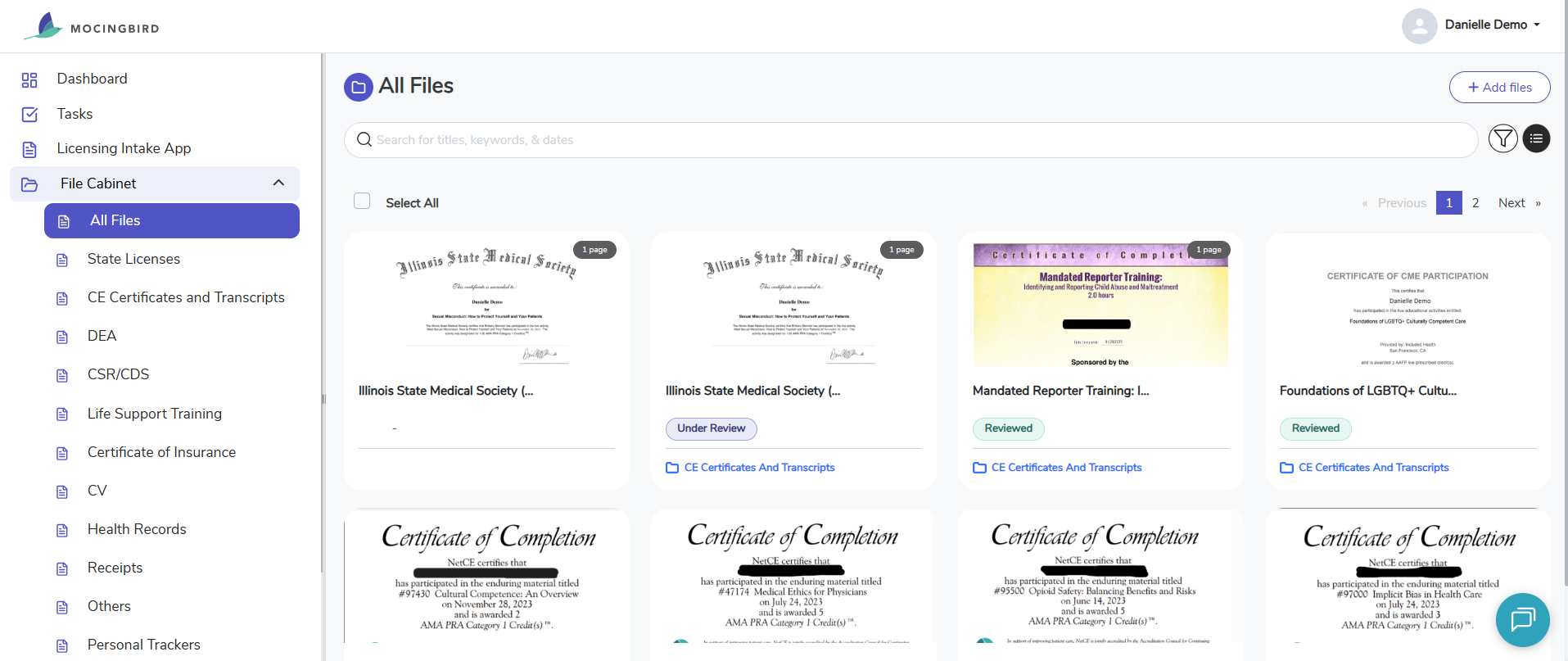
You will now see your files not only labeled with the folder in which they are located, but with tags to show the status of each document. When files are uploaded, they are processed by the platform and reviewed by our internal team. There are 4 different 'states' for the files:
- "no tag" - When files are just uploaded, there will be no tag just yet.
- "Under Review" - This tag shows that the file has been processed through the platform and our internal team still needs to finish processing the file. The credits you earned may already be applied to your state requirements on your dashboard.
- "Reviewed" - This tag shows that the file has been fully processed and reviewed by our team. You should now see it applied to all requirements that will accept it.
- "Archived" - This tag shows that the file is still in your account, but it may have been a duplicate file or unable to be processed.
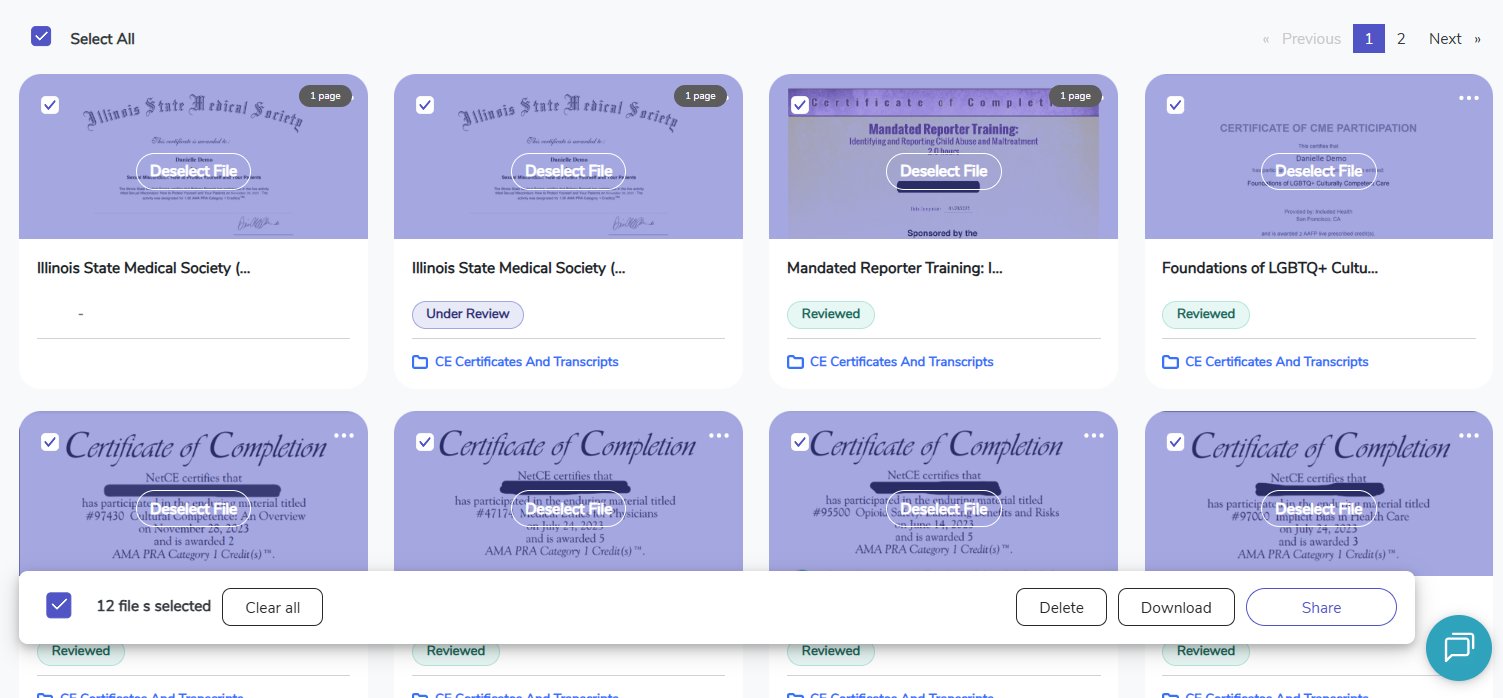
Bulk Download and Sharing
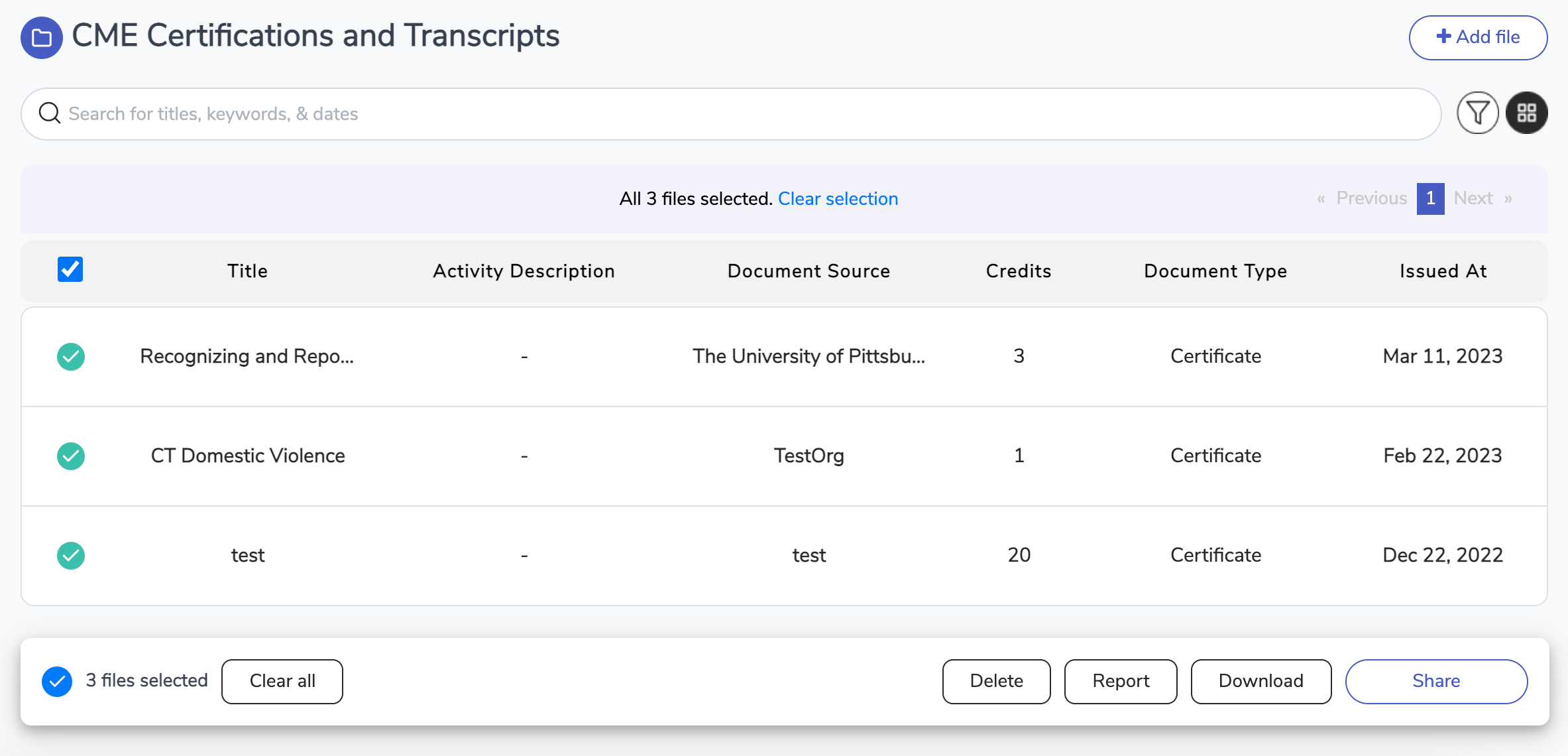
A convenient feature of the updated File Cabinet is the ability to select multiple documents at once using the "Select All" button at the top of the documents or by clicking and selecting individual documents. You can then download all selected files in a zip file or email them to others using the "Share" feature.
CE Certifications and Transcripts
Within the CE Certifications and Transcripts folder, you can easily search and filter for the files you need. Use the search bar at the top or the filter button to the right to narrow down your search. You can select all files in the folder using the "Select All" checkbox or hand-select specific files. Once selected, you will see a bar at the bottom of the screen with a "Report" button. Clicking this button will generate a report with all the relevant information for the selected files and allow you to download it.
The updated File Cabinet offers improved functionality and ease of use with its new interface and features. With the folder arrangement, search and filter functions, bulk download, and sharing options, finding and managing your files has never been easier. Utilize these features to optimize your workflow and make the most of your File Cabinet experience.